The YouTube creators growing fastest in 2026 are not the most talented. They are the most automated.
While traditional creators spend 15 to 20 hours producing a single video — researching, scripting, filming, editing, designing thumbnails, writing descriptions, optimizing for SEO — AI-automated channels complete the same production cycle in 3 to 5 hours at comparable or higher quality.
That gap compounds. A creator producing two videos per week with an AI workflow publishes 100 videos per year. A creator working manually in the same hours publishes 25. Four years of growth compressed into one. The same niche, the same effort level, fundamentally different results.
YouTube automation with AI is not about removing the human from the channel. It is about removing the repetitive, time-consuming production tasks that have nothing to do with your actual expertise and creativity — and letting AI handle them so you can focus on what actually differentiates your channel.
This guide covers the 12 best AI tools for YouTube automation in 2026 — tested across every stage of the production workflow, ranked honestly, and evaluated specifically for time savings and output quality.
Quick Answer
What are the best AI tools for YouTube automation in 2026? The best AI tools for YouTube automation are Claude or ChatGPT for script writing, ElevenLabs for voiceover, CapCut AI for editing and auto-captions, Canva AI plus ChatGPT for thumbnails, Opus Clip for automatic Shorts generation, VidIQ for SEO optimization, and Perplexity AI for topic research. Together these tools automate 70 to 80 percent of YouTube production time — reducing a 15 to 20 hour manual workflow to 3 to 5 hours while maintaining professional output quality.
What YouTube Automation Actually Means in 2026
YouTube automation gets misunderstood in two directions. Some people think it means fully automated channels that produce and publish videos without any human involvement. Others think it means simple scheduling tools.
Neither is accurate — or particularly useful.
What YouTube automation actually means: Using AI tools to handle the specific production tasks that consume time without requiring your expertise. Research, scripting structure, voiceover generation, caption creation, basic editing, thumbnail backgrounds, description writing, tag suggestions — these tasks can be automated or AI-assisted. The creative direction, content strategy, niche expertise, and editorial judgment that make your channel worth watching cannot be.
The most effective automation strategy identifies the highest-time-cost tasks in your workflow and targets those specifically. For most creators, editing and captioning consume the most time. For others, it is scripting or research. The AI tools on this list address every stage — you choose where to apply automation based on your specific bottleneck.
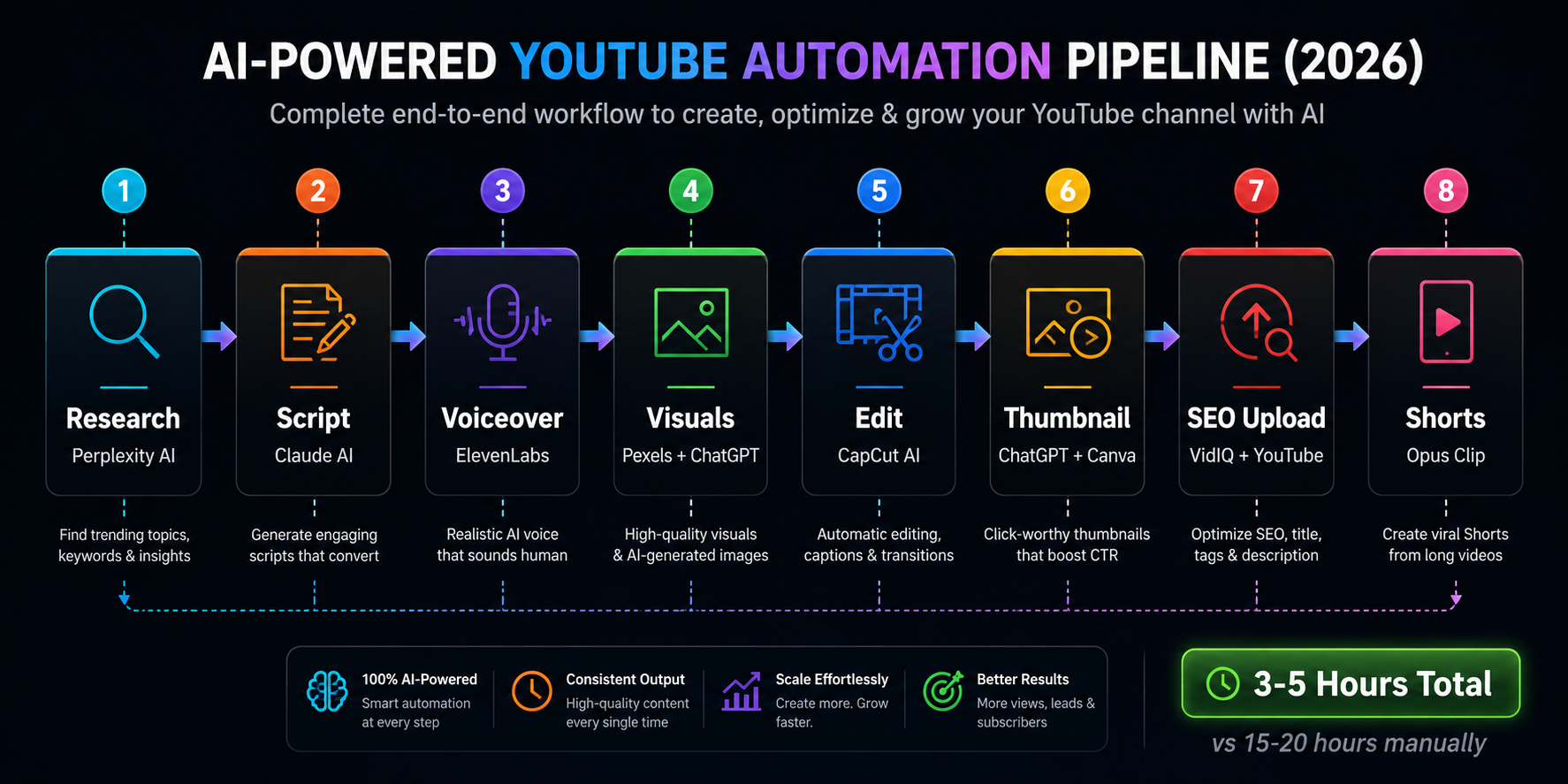
The Complete YouTube Automation Workflow
Before the tool list, here is the complete automated workflow these tools create together:
Stage 1 — Research (20 min): Perplexity AI identifies trending topics and content gaps in your niche with live web data.
Stage 2 — Script (45 min): Claude or ChatGPT generates a complete, retention-optimized script with hooks, retention cues, and natural speech patterns.
Stage 3 — Voiceover (20 min): ElevenLabs converts the script into professional-quality narration indistinguishable from human voice recording.
Stage 4 — Visuals (30 min): Pexels and Pixabay for stock footage. ChatGPT or Microsoft Designer for custom AI-generated visuals.
Stage 5 — Editing (45 min): CapCut AI auto-generates captions, removes silences, adds zooms, applies color grading, and syncs music automatically.
Stage 6 — Thumbnail (15 min): ChatGPT generates the background visual. Canva AI applies brand elements and text overlay.
Stage 7 — SEO and upload (20 min): VidIQ and Claude generate optimized titles, descriptions, and tags. Publish with complete metadata.
Stage 8 — Shorts (15 min): Opus Clip automatically extracts the best moments from your long-form video and formats them as Shorts with animated captions.
Total: 3 to 4 hours. Down from 15 to 20 hours manual.
The 12 Best AI Tools for YouTube Automation
Category 1 — Research and Idea Generation
1. Perplexity AI — Best for Topic Research and Trend Identification
Free plan: Unlimited standard searches Best for: Identifying trending topics, validating search demand, competitor gap analysis
Perplexity AI searches the live web and returns sourced, direct answers — making it the fastest research tool available for YouTube content planning. Where manual research means opening 10 browser tabs and synthesizing information across multiple sources, Perplexity delivers a synthesized answer with citations in a single query.
How it automates your research workflow:
Daily niche monitoring — run this prompt every morning to identify what is worth making a video about today: What are the most significant developments, news, and trending questions in [your niche] from the past 48 hours? For each development tell me:
Why YouTube viewers would want to understand it What angle has not been covered well yet Search volume potential (high/medium/low estimate) Whether this is evergreen or time-sensitive content
Competitor gap analysis — find topics your competitors have not covered well: Search for YouTube videos about [specific topic in your niche]. Tell me:
What are the top 5 videos currently ranking for this topic? What questions do viewers have that these videos don't answer? What is the content gap opportunity here? What angle would make a significantly better video on this topic?
Time saved per week: 3 to 5 hours of manual research condensed to 30 minutes of directed Perplexity queries.
For more on Perplexity's capabilities, read the complete Perplexity AI review.
Try it: perplexity.ai
2. VidIQ — Best for YouTube-Specific Keyword Research
Free plan: Yes — basic keyword data and competitor analysis Paid: From $7.50/month Best for: Keyword research, search volume validation, competitor intelligence
VidIQ provides YouTube-specific keyword data that general SEO tools cannot — search volume on YouTube, competition scores specific to the platform, and keyword suggestions based on what real YouTube users search for rather than what Google users search.
How it automates your SEO workflow:
The Daily Ideas feature automatically generates video topic suggestions calibrated to your channel's niche and historical performance every morning — you never start from a blank content calendar.
The keyword research workflow: enter your topic, VidIQ shows search volume, competition score, and related keywords sorted by opportunity. A keyword with search volume above 1,000 and competition below 40 is your target zone. Build your 3-month content calendar from this data in one 30-minute session.
Competitor tag analysis — view the tags on any competitor's video directly in the VidIQ Chrome extension. The tags that appear on their highest-performing videos reveal exactly which keywords their most successful content ranks for.
Time saved per week: 2 hours of manual keyword research replaced by 20 minutes of directed VidIQ queries.
Try it: vidiq.com
Category 2 — Script Writing and Content Generation
3. Claude AI — Best for Script Quality and Retention Optimization
Free plan: Generous daily limit Paid: Claude Pro at $20/month Best for: Long-form scripts, educational content, retention-optimized writing
Claude produces the most natural-sounding YouTube scripts of any AI tool — writing that sounds like a human expert rather than generated text when delivered as speech. For YouTube specifically, this matters enormously: viewers immediately detect and disengage from content that sounds like a robot reading AI output.
The complete script automation prompt: You are an expert YouTube scriptwriter for [niche] educational content. Write a complete 10-minute video script titled: "[your title]" Target audience: [description] Channel tone: [conversational/authoritative/energetic] STRUCTURE REQUIREMENTS: HOOK (0:00 to 0:30):
Open with a specific fact, statistic, or question Never start with "In today's video" or "Hey guys" Create immediate curiosity that requires watching to resolve Make a specific promise about what they will learn
OPEN LOOP (0:30 to 1:00):
Tease the most surprising or valuable point Tell them it is coming later — do not reveal yet This is what prevents early drop-off
MAIN CONTENT (1:00 to 9:00):
5 to 6 clearly defined sections Each section opens with a curiosity-creating subheading Retention hooks every 90 seconds: "But here is what almost nobody realizes..." "This is where most people make the mistake..." "The next part completely changed how I think about this..." Mark [B-ROLL: description] for specific visual cues Mark [EMPHASIS] on the most important phrases
CLOSE OPEN LOOP (8:30 to 9:00):
Deliver on the promise made in the opening
CONCLUSION (9:00 to 10:00):
3 key takeaways CTA: subscribe and comment question
WRITING RULES:
Sentences under 15 words Use contractions (you'll, it's, don't, we're) No parenthetical clauses Varied sentence rhythm Written for ears not eyes Mark technical terms needing pronunciation guide
Batch scripting — give Claude your 5 video titles for the week and ask for outlines for all of them in one session. Review and prioritize, then write full scripts for the top 3. One AI session plans your entire week's content direction.
Related articles
AI Tools
Claude Fable 5 vs Claude Opus: Which Anthropic Model Should You Use?
Claude Fable 5 vs Claude Opus — complete comparison of Anthropic's AI models in 2026. Benchmarks, capabilities, pricing, safety features, and which model is right for your use case.
AI Tools
Sora AI Video Generator Review 2026: Is It Worth It?
Sora AI video generator honest review 2026 — we tested every feature, free plan, video quality, limitations, pricing, and real-world use cases. Find out if Sora is worth using.
Time saved per video: 3 to 4 hours of manual scripting replaced by 45 minutes of AI-assisted writing and editing.
Try it: claude.ai
4. ChatGPT — Best for Idea Volume and Metadata Generation
Free plan: Unlimited GPT-4o mini Paid: ChatGPT Plus at $20/month Best for: Generating multiple title options, description writing, tag generation, batch ideation
Where Claude excels at depth and quality, ChatGPT excels at volume and variety. For tasks requiring multiple options — 10 title variations, 15 thumbnail text concepts, 20 video ideas — ChatGPT's unlimited free tier produces useful output faster than any alternative.
Title generation automation: Generate 15 YouTube title variations for a video about [topic]. Primary keyword: [keyword] Video covers: [brief description] Mix these formats:
Question format (3 titles) Number format (3 titles) How-to format (3 titles) Curiosity gap format (3 titles) Controversial or surprising claim (3 titles)
Requirements for all:
Under 60 characters Include primary keyword naturally Create genuine curiosity No misleading clickbait
Description automation: Write a YouTube video description for: Title: [title] Video covers: [summary] Requirements:
First sentence contains primary keyword and summarizes the video value proposition 300 to 400 words total Timestamps for main sections with descriptions Tools mentioned section with brief descriptions Subscribe CTA 5 relevant hashtags at the bottom Natural keyword placement throughout — never stuffed
ChatGPT image generation for thumbnails: Beyond text, ChatGPT's DALL-E integration automates thumbnail background creation. Full details in the thumbnail section below.
Time saved per video: 1 hour of metadata writing replaced by 15 minutes of AI-generated options and editing.
Try it: chatgpt.com
Category 3 — Voiceover and Audio Automation
5. ElevenLabs — Best AI Voiceover for YouTube
Free plan: 10,000 characters per month (~10 minutes audio) Paid: From $5/month (Starter — 30,000 chars) Best for: Faceless channels, voiceover production, professional narration
ElevenLabs is not the only AI voice tool — it is the only AI voice tool where the quality difference over alternatives is immediately audible to regular YouTube viewers. For channels where voiceover quality directly affects watch time and subscriber trust, ElevenLabs is non-negotiable.
The voiceover automation workflow:
Step 1 — Choose your voice once. Browse the voice library with a paragraph from your actual script. The voice that sounds natural with your specific content and niche is your channel voice — stay consistent across every video.
Step 2 — Optimize your script for speech: Before generating audio, paste your script into Claude and run: Review this YouTube script for spoken delivery issues. Flag:
Sentences over 20 words that will be hard to follow aurally Any parenthetical clauses that interrupt flow Technical terms that need pronunciation guidance Passages where the pace needs to slow for emphasis Any phrases that sound written rather than spoken
Suggest specific rewrites for each flagged item.
Step 3 — Generate in sections. Paste each script section separately rather than the complete script at once. This produces more consistent pacing and allows section-by-section regeneration when a specific passage does not sound right.
Recommended settings:
- Stability: 0.55
- Clarity/Similarity: 0.75
- Style: 0.15
Step 4 — Review completely before editing. Listen to every generated audio clip before importing it into your video editor. Catch mispronunciations and unnatural pauses at the audio stage — not after you have already synced visuals.
For a complete comparison of ElevenLabs against every alternative, read the best AI voice generators guide.
Time saved per video: 4 to 6 hours of professional voiceover recording and studio time replaced by 20 minutes of AI generation.
Try it: elevenlabs.io
Category 4 — Video Editing Automation
6. CapCut AI — Best for Automated Video Editing
Free plan: Fully free — all core AI features included Best for: Auto-captions, silence removal, faceless channel editing, Shorts formatting
CapCut AI is the most practically useful free video editing tool for YouTube creators in 2026 because it automates the most time-consuming editing tasks — not just assists with them. Auto-captions, silence removal, beat-sync, and format conversion happen automatically without manual frame-by-frame work.
The CapCut automation workflow:
Auto-caption generation: Import your audio, run auto-captions — CapCut transcribes and places subtitles with 90%+ accuracy in under 2 minutes for a 10-minute video. Manual captioning the same content takes 45 to 60 minutes. Review and fix the remaining errors in another 5 minutes.
Captions are not cosmetic — they directly improve retention because a significant percentage of YouTube viewers watch with sound off, particularly on mobile.
Silence and filler removal: CapCut's silence detection automatically identifies and removes pauses, filler words, and dead air from your audio timeline. A 12-minute raw recording with natural pauses becomes a 10-minute tight edit automatically. What previously required listening to the entire recording and manually marking cut points happens in one click.
Auto-zoom and dynamic camera: CapCut's auto-zoom applies subtle dynamic zooms to static footage, improving visual engagement without manual keyframing. Apply moderately — the goal is to create visual interest, not distraction.
Beat-sync for music: Import background music and CapCut automatically identifies beat points and can sync visual cuts to the rhythm — producing professional-feeling edits without manual timing work.
Multi-format export: Export the same video in 16:9 for YouTube, 9:16 for Shorts, and 1:1 for Instagram simultaneously — CapCut's auto-reframe analyzes the footage and repositions the subject appropriately for each format.
Time saved per video: 4 to 6 hours of manual editing replaced by 45 to 60 minutes of AI-assisted editing and review.
Try it: capcut.com
7. Descript — Best for Text-Based Editing
Free plan: Yes — limited monthly transcription Paid: Descript Creator at $12/month Best for: Talking-head content, interview editing, removing filler words at scale
Descript transcribes your video and lets you edit it like a text document. Delete a sentence from the transcript — the corresponding video and audio are removed. This approach to editing is fundamentally faster for talking-head content than traditional timeline editing.
The killer feature: Overdub — Descript creates an AI voice clone of your voice from a sample. When you realize you said something wrong or want to add a sentence, you type the correction and your voice says it. No re-recording. No going back to the microphone. No audio quality inconsistency.
Filler word removal at scale: Descript's automatic filler word detection identifies every "um," "uh," "you know," and "like" in your recording and removes them all in one click with your review.
Time saved per video: 3 to 4 hours of timeline editing replaced by 1 to 2 hours of document-style text editing.
Try it: descript.com
Category 5 — Thumbnail Automation
8. Canva AI + ChatGPT — Best Thumbnail Creation System
Free plan: Both free Best for: Consistent, professional thumbnails at scale
The most efficient thumbnail workflow in 2026 combines two free tools: ChatGPT for background image generation and Canva AI for text overlay and brand application.
Why this combination works: ChatGPT with DALL-E generates custom, topic-specific background visuals from detailed prompts. Canva applies your brand colors, fonts, and text overlay from your saved Brand Kit. The result is a professional thumbnail in 15 minutes that previously took an hour of manual design work.
The complete thumbnail automation system:
Step 1 — Generate background in ChatGPT: Create a YouTube thumbnail background image. Topic: [your video topic] Style: Cinematic, dramatic, high contrast, professional Visual concept: [describe the specific scene or concept] Color scheme: Dark background with [your primary color] accents Mood: [dramatic/educational/surprising/professional] Requirements:
No text in the image Visually striking at small sizes (will be viewed at 150px wide) High contrast composition Clear focal point 16:9 format, 1280x720 quality
Step 2 — Import into Canva: Download the ChatGPT image and upload it to your Canva thumbnail template.
Step 3 — Apply Brand Kit: Add your text overlay using saved fonts and colors from Canva's Brand Kit. Maximum 4 words — large, bold, high contrast. The text should be readable on a phone screen.
Step 4 — Export and test: Export at 1280x720. Test at 150px wide — if text is unreadable or the subject is unclear at that size, it will not perform on mobile.
Alternative tools for specific situations:
Microsoft Designer — when you need more free daily image generations than ChatGPT's free tier allows. Uses the same DALL-E 3 model as ChatGPT Plus at higher free volume.
Ideogram — when your thumbnail concept requires readable text to appear within the generated image itself (signs, headlines, UI elements). Handles text-in-image more reliably than any other free tool.
Adobe Firefly — when you are on a monetized channel and want explicit commercial copyright clearance on all generated images. All Firefly images are trained on licensed content and cleared for commercial use.
Related articles
AI Tools
How to Start a Faceless YouTube Channel with AI in 2026 (Complete Guide)
Learn exactly how to start a faceless YouTube channel with AI in 2026. Complete step-by-step guide covering niche selection, script writing, AI voiceover, video editing, thumbnails, monetization, and growth strategy.
AI Tools
PaLM 2 vs Gemini: What Changed and Why It Matters in 2026
PaLM 2 vs Gemini — what are the key differences, which is more capable, and why Google replaced PaLM 2 with Gemini? Complete comparison with benchmarks, features, and real-world performance.
A/B testing: Upload two thumbnail versions to YouTube. Use YouTube's built-in thumbnail testing feature to automatically determine which performs better with your actual audience.
Time saved per video: 45 to 60 minutes of manual thumbnail design replaced by 15 to 20 minutes of AI-assisted creation.
Category 6 — Shorts and Repurposing Automation
9. Opus Clip — Best for Automatic Shorts Generation
Free plan: Yes — limited monthly clips Paid: From $15/month Best for: Automatically extracting Shorts from long-form videos, multi-platform repurposing
Opus Clip analyzes your long-form video, identifies the most engaging moments using AI, extracts them as vertical clips, adds animated captions, and scores each clip by predicted virality — automatically. What previously required manually watching your video, identifying the best moments, extracting clips, reformatting, and adding captions takes 3 to 5 minutes with Opus Clip.
The Shorts automation workflow:
Upload your finished long-form video to Opus Clip immediately after publishing to YouTube. Set your target clip length (30 to 60 seconds for YouTube Shorts). Opus Clip generates 5 to 10 clips ranked by virality score. Review the top 3, make minor adjustments if needed, download and upload to YouTube as Shorts.
Why Shorts matter for automation strategy:
Every long-form video becomes 5 to 10 Shorts with minimal additional effort. These Shorts give your channel daily discovery opportunities beyond your main upload schedule. Shorts viewers who convert to long-form viewers become subscribers with higher retention rates than cold algorithmic viewers.
A channel publishing one long-form video and five Shorts per week effectively has six pieces of content competing for views from one production session.
Time saved per week: 2 to 3 hours of manual Shorts repurposing replaced by 15 to 20 minutes of Opus Clip review and upload.
Try it: opus.pro
Category 7 — SEO and Analytics Automation
10. TubeBuddy — Best for YouTube SEO Automation
Free plan: Yes — core features available Paid: From $4.99/month Best for: Title optimization, A/B testing, bulk metadata updates, tag suggestions
TubeBuddy is a Chrome extension that adds an AI-powered SEO layer directly inside YouTube Studio — providing keyword scores, title suggestions, competitor analysis, and optimization recommendations without leaving the platform you are already working in.
The SEO automation features that matter most:
Title AB Test: Automatically tests multiple title variations and rotates between them based on which generates higher CTR. Set and forget — TubeBuddy collects data and shows you the winner.
Bulk copy: Update metadata across multiple videos simultaneously. When you add a new affiliate link or update your channel description, apply it across your entire video library without opening each video individually.
Best time to publish: Analyzes your channel's historical data and suggests the optimal publishing time for your specific audience — removing the guesswork from scheduling.
SEO Studio: Enter your target keyword and TubeBuddy scores your title, description, and tags against what is currently ranking — then provides specific improvement suggestions.
Try it: tubebuddy.com
11. YouTube Studio AI Insights — Best for Performance Analysis
Free plan: Completely free — included with every YouTube account Best for: Retention analysis, traffic source optimization, content strategy adjustment
YouTube Studio's built-in AI analytics are significantly underutilized by most creators. The audience retention graph, traffic source breakdown, and impressions-to-watch data together tell you exactly what is working, what is failing, and why.
The weekly analytics automation review:
Every Monday, spend 20 minutes reviewing these metrics for your previous week's videos:
Retention curve: Where do viewers stop watching? A drop at 0:30 means your hook is not working. A drop at the 50% mark means your second half loses momentum. Specific drop points reveal specific production problems — fix the problem, not just the symptom.
CTR (Click-Through Rate): Below 3% means your thumbnail and title combination is not compelling your target audience. Above 8% means you have found a visual and messaging combination that resonates — replicate it.
Impressions source breakdown: Which traffic sources (search, suggested, browse) drive your views? A channel growing primarily on search has a fundamentally different optimization priority than one growing through suggested videos.
Use Claude to analyze patterns across multiple videos: Here are the performance metrics for my last 8 YouTube videos: [paste: title, views, CTR, average view duration, primary traffic source for each video] Analyze:
What patterns do the top-performing videos share? What do the underperforming videos have in common? Which traffic source is driving my growth? What specific changes should I make to my next 4 videos based on this data?
12. Zapier — Best for YouTube Workflow Automation
Free plan: 100 tasks per month Paid: From $19.99/month Best for: Connecting YouTube to other tools, automating post-publish workflows
Zapier connects YouTube to the rest of your workflow — triggering automated actions when specific YouTube events occur. When you publish a new video, Zapier can simultaneously post to Twitter, update your Notion content calendar, send a notification to your Discord community, add the video to your email newsletter queue, and create a promotional social media post draft — all automatically.
Most valuable YouTube automation workflows on Zapier:
New video → social media posts: Automatically create platform-specific social media drafts in Buffer when you publish a new YouTube video. Your distribution workflow starts without manual work.
New subscriber milestone → celebration post: When your channel hits a subscriber milestone, automatically trigger a community post or social media celebration.
Video analytics → Notion database: Pull weekly performance data from YouTube into your content tracking Notion database automatically, maintaining your analytics record without manual data entry.
Try it: zapier.com
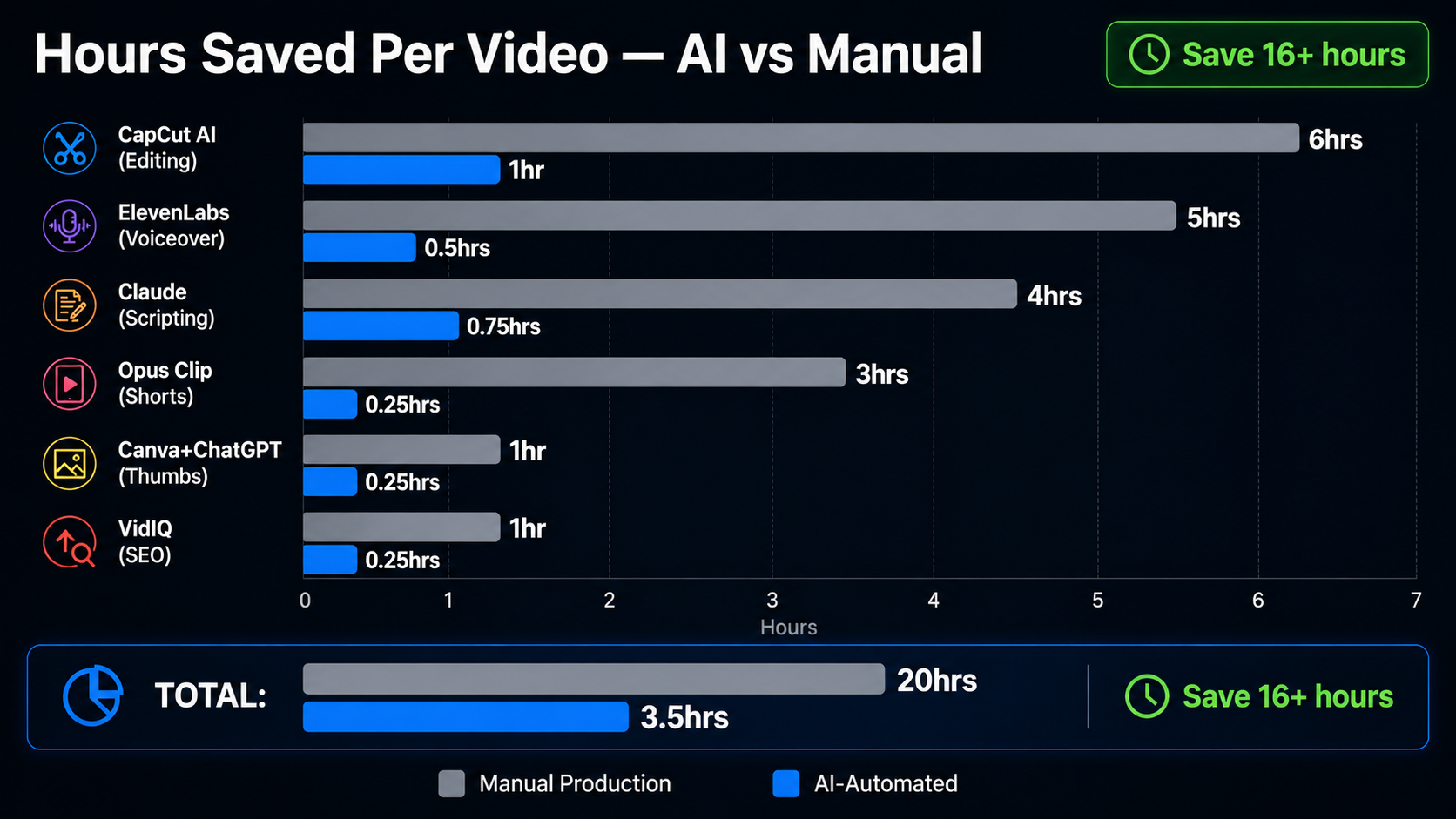
Complete Automation Stack Comparison
| Tool | Automation Stage | Time Saved/Video | Free Plan | Paid Plan |
|---|---|---|---|---|
| Perplexity AI | Research | 2 to 3 hours | Unlimited | $20/month |
| VidIQ | Keyword SEO | 1 to 2 hours | Basic free | $7.50/month |
| Claude AI | Script writing | 3 to 4 hours | Daily limit | $20/month |
| ChatGPT | Metadata + thumbnails | 1 to 2 hours | Unlimited | $20/month |
| ElevenLabs | Voiceover | 4 to 6 hours | 10K chars | $5/month |
| CapCut AI | Video editing | 4 to 6 hours | Fully free | Free |
| Descript | Text editing | 2 to 3 hours | Limited | $12/month |
| Canva AI | Thumbnail design | 45 min to 1 hour | Generous | $15/month |
| Opus Clip | Shorts repurposing | 2 to 3 hours | Limited | $15/month |
| TubeBuddy | SEO optimization | 1 hour | Core free | $4.99/month |
| YouTube Studio | Analytics review | 1 hour | Fully free | Free |
| Zapier | Cross-platform | 30 min to 1 hour | 100 tasks | $19.99/month |
Total weekly time savings with full automation stack: 10 to 15 hours per video
Building Your Automation Workflow — Week by Week
The most common mistake when adopting YouTube automation tools is trying to implement everything simultaneously. Start with your biggest bottleneck and build from there.
Week 1 — Eliminate your largest time cost
Identify which production stage consumes the most time in your current workflow. For most creators it is editing (implement CapCut AI) or scripting (implement Claude). Start there exclusively.
Week 2 — Add research automation
Implement Perplexity AI and VidIQ for your research workflow. Build your 4-week content calendar in one 90-minute session using VidIQ keyword data and Perplexity trend analysis.
Week 3 — Add metadata automation
Use ChatGPT to generate title variations, descriptions, and tags for all videos you have already planned. Build template prompts for each metadata type that you reuse every week.
Week 4 — Add Shorts automation
Implement Opus Clip for your published videos. Run your last 4 published videos through it and upload the best Shorts. This immediately multiplies your content output without additional production work.
Month 2 — Optimize and connect
Add Zapier to connect your tools. Review analytics weekly using the Claude prompt above to identify patterns. Continuously refine your AI prompts based on what produces the best output for your specific content.
Common Automation Mistakes
Automating the wrong things. Niche expertise, editorial judgment, and authentic perspective cannot be automated — and attempting to do so produces generic content that fails to build an audience. Automate production tasks. Never automate your thinking.
Not reviewing AI output before publishing. AI scripts occasionally include incorrect facts. AI voiceovers occasionally mispronounce words. AI thumbnails occasionally misunderstand your intent. Every automated output requires human review before it represents your channel publicly.
Over-relying on automation for SEO. VidIQ and TubeBuddy provide data. They do not make decisions. The judgment of which keywords to target, which topics to prioritize, and how to position your content against competitors requires your understanding of your audience — not just algorithmic recommendations.
Inconsistent production standards. Automation should maintain quality — not reduce it. If your AI voiceover sounds slightly wrong or your thumbnail looks slightly generic, fix it before publishing. Viewers forgive many things. Consistently low production quality is not one of them.
Ignoring the analytics automation opportunity. Most creators spend time producing content and minimal time analyzing what works. The YouTube Studio AI insights and the Claude pattern analysis prompt above provide more strategic value per hour than almost any other activity on this list.
Advanced Automation Strategies
The Batch Production System
Instead of producing one video end-to-end, batch each production stage across multiple videos simultaneously.
Monday (2 hours): Research and validate 5 video topics using Perplexity and VidIQ. Generate outlines for all 5 using Claude.
Tuesday (3 hours): Write complete scripts for the 3 highest-priority topics using Claude. Generate all voiceovers using ElevenLabs.
Wednesday (3 hours): Edit all 3 videos using CapCut AI. Generate all thumbnails using ChatGPT and Canva.
Thursday (1 hour): Upload all 3 videos with complete metadata. Run all 3 through Opus Clip and schedule Shorts for the following week.
Total: 9 hours producing 3 videos — 3 hours per video.
The Template Library System
Build a library of proven prompts for every automation task. A prompt that produces great script output for your specific niche, tone, and audience is worth saving and reusing. Over 3 to 6 months, your template library becomes your most valuable production asset.
Organize in Notion:
- Script prompts by content type (educational, review, comparison, tutorial)
- Title generation prompts by format (question, number, how-to, curiosity)
- Thumbnail prompts by visual style (dark/dramatic, light/educational, colorful/energetic)
- Description template with your standard sections pre-formatted
The Evergreen Optimization Loop
Every 90 days, run your 10 oldest videos through this optimization loop using TubeBuddy:
- Update thumbnails on videos with CTR below 4%
- Rewrite titles on videos with CTR below 3%
- Update descriptions with current affiliate links and updated tool mentions
- Add cards linking to newer related videos in your library
- Re-examine tags and update based on current VidIQ keyword data
Older videos with improved CTR and updated metadata often experience renewed algorithmic distribution — generating views on existing content without creating anything new.
Expert Tips for Maximum YouTube Automation ROI
Tip 1 — Automate the bottleneck, not the preference. Every creator has tasks they dislike and tasks they enjoy. Automation temptation is often to eliminate what you dislike rather than what takes the most time. Measure your time per task for one week, then automate the top time consumers — regardless of enjoyment.
Tip 2 — Build your prompts from your best performing content. Take your 3 highest-performing videos and analyze what made them work — the hook structure, the pacing, the visual style. Build these patterns into your script and thumbnail prompts so AI consistently replicates what your specific audience responds to.
Tip 3 — Use automation to raise your publishing frequency strategically. The goal of automation is not just to save time on your current publishing schedule — it is to use the saved time to publish more consistently. Consistent publishing is the single strongest predictor of YouTube channel growth at every stage.
Related articles
AI Tools
10 Best AI Voice Generators in 2026 (Free and Paid, Ranked)
Discover the 10 best AI voice generators in 2026 — tested and ranked for voice quality, naturalness, languages, free plan value, and real-world use cases. Find the perfect AI voice tool.
AI Tools
How to Build a Personal Brand Using AI in 2026 (Complete Guide)
Learn how to build a powerful personal brand using AI tools in 2026. Complete step-by-step guide covering content strategy, social media, website, thought leadership, and monetization with AI.
Tip 4 — Maintain voice consistency across automated voiceovers. Keep your ElevenLabs voice settings documented. The exact stability, clarity, and style settings that produce your channel's signature audio should be saved and applied identically every session. Inconsistent voice settings across videos undermine the sense of a coherent channel identity.
Tip 5 — Test automation tools on low-stakes content first. New tools in your workflow get tested on videos where the stakes are lower — a Shorts video, a topic you have covered before, a repurposed piece — before they become part of your main content production. This builds competence with the tool before it affects your most important content.
For the complete guide to building a YouTube channel with AI tools from scratch, read the how to grow a YouTube channel with AI guide.
Key Takeaways
- YouTube automation with AI reduces a 15 to 20 hour manual production workflow to 3 to 5 hours per video
- The 12 best automation tools cover every stage: research, scripting, voiceover, editing, thumbnails, Shorts, SEO, and distribution
- CapCut AI is the highest-leverage free tool — auto-captions alone save 45 to 60 minutes per video
- The best thumbnail workflow combines ChatGPT for background generation and Canva for brand application — both free
- Batch production across multiple videos simultaneously reduces time-per-video further than working on one video end-to-end
- Analytics automation — using Claude to identify patterns across your video performance data — is the most underutilized automation opportunity
- Automate production tasks never creative judgment — the expertise and perspective that make your channel worth watching cannot and should not be automated
Frequently Asked Questions
What is YouTube automation with AI? YouTube automation with AI means using AI tools to handle the repetitive, time-consuming production tasks in YouTube content creation — script writing, voiceover generation, video editing, caption creation, thumbnail design, SEO metadata, and Shorts repurposing. It does not mean fully automated channels without human involvement. The most successful automated channels use AI for production efficiency while maintaining human direction, expertise, and editorial judgment.
Is YouTube automation allowed? Yes. YouTube's policies allow AI-assisted content creation. The key requirements are that content provides genuine value to viewers, synthetic media is disclosed where required by YouTube's policies, and content complies with YouTube's community guidelines. Using AI tools for production efficiency is explicitly permitted.
How much time does YouTube automation save? A complete AI automation workflow reduces production time from 15 to 20 hours per video to 3 to 5 hours per video. The largest individual time savings come from automated editing and captions (CapCut AI: 4 to 6 hours saved), voiceover generation (ElevenLabs: 4 to 6 hours saved), and automated Shorts repurposing (Opus Clip: 2 to 3 hours saved).
What is the best free AI tool for YouTube automation? CapCut AI is the best free YouTube automation tool — it is fully free with no meaningful limitations on core features and automates the most time-consuming production tasks (captions, silence removal, format conversion). Claude AI free tier and ChatGPT free tier together handle scripting and metadata generation at no cost. The complete free automation stack covers 80% of the automation value at zero cost.
Can AI replace a YouTube editor? For faceless educational channels using stock footage and AI voiceover, CapCut AI's automated features handle the majority of editing tasks that a human editor would perform — at comparable speed and quality for this content type. For complex talking-head content with intricate multi-camera editing, motion graphics, or custom visual effects, human editors still outperform current AI tools. The line is moving toward AI rapidly.
How do I start YouTube automation as a beginner? Start with two tools: Claude AI for script writing and CapCut AI for editing and auto-captions. Use these for your first 5 videos. Once you are comfortable, add ElevenLabs for voiceover and Canva plus ChatGPT for thumbnails. After you have a working production system, add VidIQ for keyword research and Opus Clip for Shorts. Build incrementally rather than adopting everything simultaneously.
Start Automating Your YouTube Workflow Today
The productivity gap between creators using AI automation and those who are not is growing every month. The tools are available, mostly free, and the workflows are proven.
The most important step is starting with one tool in your highest-time-cost stage and building from there. Every hour of production time AI saves you is an hour you can reinvest in better content strategy, deeper niche expertise, or simply more consistent publishing.
Pick your biggest bottleneck. Find it on this list. Implement it this week.
For more on building and growing a YouTube channel with AI, read the how to grow a YouTube channel with AI complete guide, the how to start a faceless YouTube channel guide, the best AI voice generators guide, the best AI tools for content creators, and the how to make money with AI tools guide.